I recently got the following message The plex is missing on a Windows Home Server 2011. This refers to a failed or missing physical hard drive in a software RAID 1 (mirrored) volume. “Plex” is Microsoft’s term for one copy of the data within a mirrored volume.
Fortunately I could boot into the Secondary Plex which was still functioning to troubleshoot. The mirrored array had gone out of sync and would now not resync. Attempting to reactivate the volume yielded the error message The plex is missing. The drive was showing up as Missing.
So I removed the 2 faulty mirror volumes, dropped in a new hard drive and then recreated the mirrored volumes.
The steps
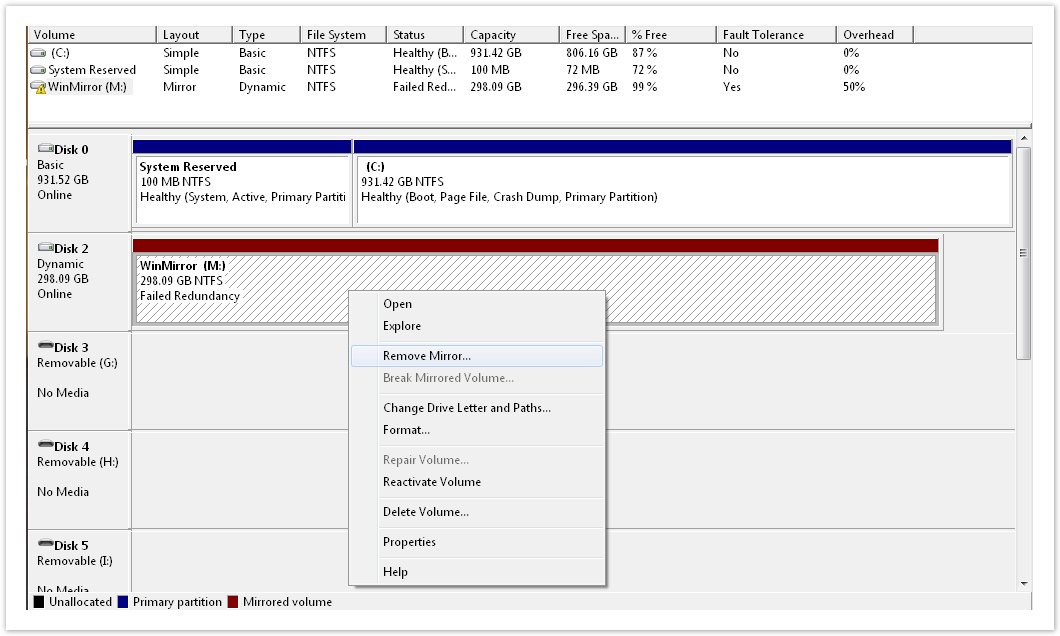
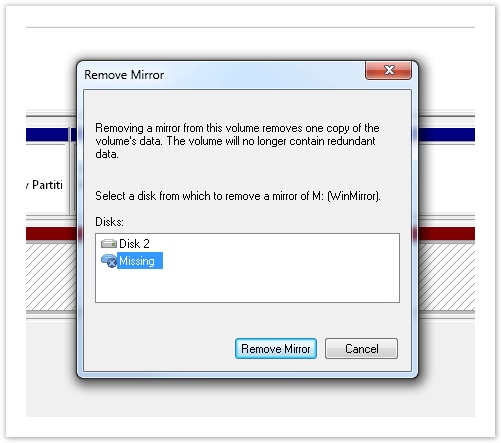
Open Administrative Tools>Computer Management>Disk Management, right-click on the partition that is still functioning and go to Remove Mirror, Select and remove the failed disk. In my example, Disk 2 was the disk that failed, so I’m keeping Disk 1 and removing Disk 2, which is labeled just as Missing
Fortunately I had a spare drive bay to install the new drive whilst troubleshooting.
To get the serial number of the drives, type the following command into the Command Prompt
wmic diskdrive get serialnumber
Right-click on the disk volume that survived from the original mirror, and go to Add Mirror – adding the mirror setup the disk as Dynamic and set the size of the Volume correctly. I did this both for the boot and data volumes.
Now you have a new RAID 1, Mirrored Volume. Both drives in the array say Resynching, which is your data being copied to the new mirror.
Reconfiguring Boot
If your Secondary Plex is the only setup that boots, you can do the following to change to make it the primary boot.
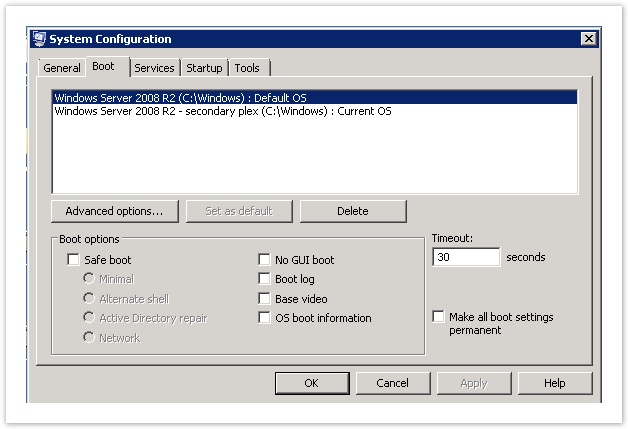
In Search type msconfig and Enter. Goto to the Boot Tab
Select Secondary Plex and then choose Set as default
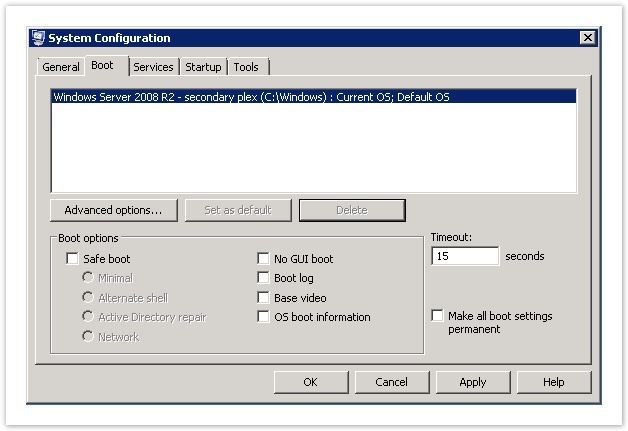
I then tested that it booted correctly before going back into msconfig and removing the other boot option
Check Resynchronization % Completion
- Open Disk Management Console
- Right-click on Computerr>Manage
- In the Computer Management window, navigate to Storage>Disk Management
- View Status
- Locate your mirrored volume in the list or graphical view
- The Status column for the volume should indicate
Resynchingand show a percentage complete, for example,Resynching (22%).
- Refresh the View (if needed)
- If the percentage isn’t updating or visible, right-click on the volume and select Refresh or select Action>Refresh from the menu bar
Troubleshooting Slow or Stuck Resynchronization
- Resync Speed: Windows software RAID resyncs typically run at a slow speed to minimize performance impact on the running system, often around 7-10% of the disk’s normal speed. Large drives can take many hours or even days to complete
- Repeated Resyncs: An abnormal shutdown (power outage, force restart) or sometimes even a Windows Update-related reboot can cause the system to start the resync process from the beginning
- Reboot Might Help: In some cases, a clean, normal reboot has been reported to fix a stuck or extremely slow resync, allowing it to restart at a faster, normal rate
- Check Event Logs: Reviewing the System Event Logs may provide clues about power interruptions or other conditions that triggered the resync
- Consider Hardware RAID: Windows software mirroring is known to have reliability issues with frequent resyncs after non-graceful shutdowns. For a more robust solution, especially for important data, many experts recommend using a dedicated hardware RAID controller or using modern storage technologies like Storage Spaces in newer Windows Server versions
Check Drives
Run chkdsk /r on all volumes after synching is complete to ensure data integrity.
Other errors
The error you cannot mirror the current boot volume on another disk with a different partition style means Windows can’t create a RAID 1 mirror because the source and destination disks don’t have matching partition styles (MBR vs. GPT) or potentially inconsistent sector sizes, preventing software mirroring; to fix it, you must convert both disks to the same type (typically GPT for modern systems) and ensure they’re unallocated, then convert them to Dynamic Disks before adding the mirror.